 NetGuard
NetGuard / Unknown device on my network
Guide
Unknown Device on Your Network? How to Identify It From an iPhone
Most unfamiliar entries turn out to be something you own. This page separates the boring explanations from the ones worth acting on, and gives you a way to prove which is which.

First, calm down
The four usual explanations
Before you change every password in the house, check these. In a normal home network they cover the large majority of unfamiliar entries.
-
An accessory that never announced a name
Smart plugs, sensors, thermostats and cheap cameras often answer a probe but advertise no service and no hostname, so there is nothing for a scanner to display but an address. They look anonymous because they are quiet, not because they are hiding.
-
A device showing its model number
A name like an eight character code followed by digits is usually a chipset or model identifier baked in at the factory. Look at what services it offers before you assume anything.
-
A guest who connected once
Phones and laptops rejoin a known network automatically. A visitor's phone in a pocket in the hallway is on your WiFi without anyone deciding to put it there.
-
The router itself, more than once
Mesh systems, repeaters and powerline adapters each take an address. NetGuard labels the gateway explicitly, but a second or third node in the same system is just another device in the list.
Method
Four steps that identify almost anything
-
Read the services, not the name
The name can be missing or meaningless. The services a device advertises describe what it actually does, and they are much harder to fake by accident. Tap the device to see them.
-
Match the service to a category
Use the table below. AirPlay or Google Cast means a TV streamer, printing services mean a printer, file sharing or remote login means a computer, HomeKit services mean an accessory.
-
Switch things off one at a time
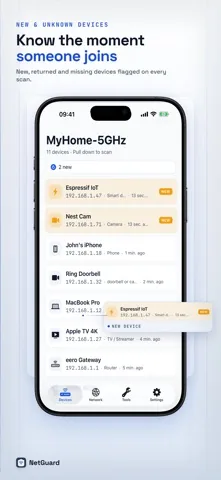
This is the definitive test. Unplug or power down one candidate, rescan, and see which entry goes missing. NetGuard marks devices that were present last scan and are absent now, so you do not have to compare lists by eye.
-
Name what you have identified
Once you have proved what a device is, name it. The point is not tidiness. It is that on the next scan, anything unnamed is genuinely unexplained.
Reference
What an advertised service says about a device
These are the service types NetGuard listens for and the device category it assigns to each. Most specific wins: a printer that also serves web pages is still classified as a printer.
| Service | In plain words | Device type |
|---|---|---|
| _printer, _ipp, _pdl-datastream | Accepts print jobs | Printer |
| _hap, _homekit | HomeKit accessory protocol | Smart plug or sensor |
| _googlecast | Google Cast receiver | TV streamer |
| _airplay | AirPlay screen and video receiver | TV streamer |
| _raop | AirPlay audio only | Speaker |
| _smb, _afpovertcp | Shares files on the network | Computer |
| _ssh, _sftp-ssh | Accepts remote logins | Computer |
| _workstation, _device-info | Announces itself as a workstation | Computer |
| _companion-link, _rdlink | Apple device pairing | No type assigned |
The last row matters. Those two services run on Macs, Apple TVs and iPhones alike, so they prove the device is an Apple product but not which one. NetGuard deliberately assigns no type rather than guessing.
If it is not yours
Getting an uninvited device off your WiFi
-
Change the WiFi password
This is the only step that reliably removes a device you do not control. Everything disconnects, and only what you reconnect by hand comes back. Set a long passphrase rather than a clever short one.
-
Check the encryption while you are in there
The network should be on WPA2 or WPA3. If the router still offers WEP or an open network, that is the actual problem, and no password change fixes it.
-
Turn off WPS and remote management
WPS push button pairing is a convenience that hands out access. Remote management exposes the router itself. Both are safe to switch off in a home network.
-
Give visitors a guest network
A guest network keeps other people's devices off the network your own devices live on, and lets you rotate that password without reconnecting the whole house.
-
Then check what the router leaves open
A stranger on the WiFi is one risk. Services reachable from the WiFi are another. The router security check scores that and names each fix.
Watching while you are out. NetGuard Pro keeps a new device alert log, a history of who joined your WiFi, and can raise background intruder alerts when an unfamiliar device appears. That covers the case a manual scan never will, which is a device that connects at three in the morning and leaves before breakfast.
Download
Put a name on every device you own
Free and ad supported. iPhone, iOS 17.0 or later. No account, and NetGuard does not collect your data.
FAQ
Questions people ask next
Is an unknown device on my network always an intruder?
No, and most of the time it is not. The usual explanations are a smart home accessory that never announced a name, a guest phone that connected weeks ago, a device showing its model number instead of a friendly name, or a second radio inside a mesh router. Work through the harmless explanations first, then treat what is left as suspicious.
How do I identify an unknown device on my WiFi?
Open the device in your scanner and read the services it advertises, because those describe what it does. AirPlay means a TV streamer or speaker, printing services mean a printer, file sharing or remote login means a computer, and HomeKit services mean an accessory. Then switch things off one at a time and rescan. The device that disappears is the one you just unplugged.
How do I remove an unknown device from my WiFi?
Change the WiFi password in your router settings. That disconnects everything, including the unknown device, and only the devices you reconnect by hand come back. While you are in there, confirm the network uses WPA2 or WPA3, turn off WPS, and give visitors a separate guest network.
Can NetGuard tell me when a new device joins?
Yes, with NetGuard Pro. Pro keeps a new device alert log, a history of who joined your WiFi, and can raise background intruder alerts when an unfamiliar device appears. Every scan is also sorted into new, returned, missing and still present, so you can see what changed without reading the whole list again.
Keep going