 NetGuard
NetGuard / Who is on my WiFi
Guide
Who Is on My WiFi? Find Out From Your iPhone in One Tap
There are two honest ways to get the list: sign in to your router, or run a scanner on a phone that is already on the network. This page walks through both, and shows how to read the result.

Short answer
The scan takes about a minute
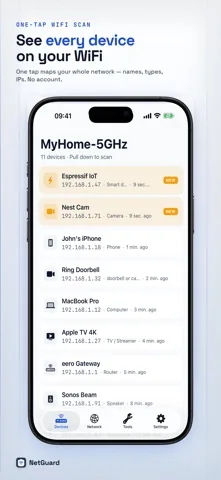
Join the WiFi you want to check, open a network scanner and tap scan. NetGuard walks every address in your local subnet, listens for the services devices announce over Bonjour, and asks the network for a reverse DNS name for each address that answered. What comes back is one list: a friendly name, a device type, an IP address, and the services that device exposes.
Method
Five steps to a list you can actually read
-
Get on the right network
A scanner can only see the network your phone is joined to. If you have separate 2.4 GHz and 5 GHz names, or a guest network, check each one in turn. Devices on the guest network will not show up in a scan of the main one.
-
Scan with everything switched on
Devices that are asleep may not answer. Wake the TV, the printer and the console before the first scan so your baseline is complete.
-
Name every device you recognize
This is the step people skip, and it is the one that makes the second scan useful. Give each device a name you would recognize in six months. NetGuard Pro stores the name and reuses it on every later scan.
-
Scan again and read the changes
NetGuard compares each scan with the one before it and sorts every device into new, returned, missing or still present. After a proper first pass, anything marked new is genuinely new.
-
Open anything still unnamed
Tap a device to see its services, its address and when it was first and last seen. That is usually enough to work out what it is. If it is not, the next page has a method for it.
Reading the list
What the name of a device tells you
Most devices announce themselves. A name that contains a recognizable word is a strong hint about what the device is, and NetGuard uses exactly these hints to assign a device type.
| If the name contains | NetGuard calls it |
|---|---|
| iphone, android, pixel, galaxy | Phone |
| ipad | Tablet |
| macbook, imac, -pc, desktop | Computer |
| appletv, firetv, chromecast, -tv | TV streamer |
| cam, ring, nest | Camera or sensor |
| printer, laserjet | Printer |
| sonos, echo, speaker | Speaker |
| fritz, router, gateway, eero | Router or mesh node |
When a device answers with no name at all, NetGuard falls back to the services it advertises over Bonjour. A device offering AirPlay is a TV streamer, one offering printing is a printer, one offering file sharing or remote login is a computer. The full service list is on the scanning page.
The other route
Reading the list from your router instead
Your router already knows every device it has handed an address to. Open a browser on a device connected to the network, enter the router address (often 192.168.0.1 or 192.168.1.1), sign in, and look for a page called attached devices, connected devices or DHCP client list.
Two things make it awkward in practice. The entries are usually hardware identifiers rather than friendly names, so you still have to work out which line is the thermostat. And the page shows only the current state: close it, come back tomorrow, and there is no record of what changed in between. That is the gap a scanner with history fills.
One thing an iPhone scanner genuinely cannot do. iOS does not expose MAC addresses to apps. So while your router can show you a hardware address and guess a manufacturer from it, no iPhone app can. NetGuard identifies devices by reverse DNS name, advertised services and network position instead, and lets you name anything the network did not name for you.
Download
Get the list on your own network
NetGuard is free and ad supported, runs on iPhone with iOS 17.0 or later, needs no account and collects no data.
FAQ
Questions people ask next
How can I see who is on my WiFi from an iPhone?
Install a network scanner such as NetGuard, join the WiFi you want to check, and tap scan. The app probes every address in your local subnet, browses for Bonjour services and asks for a reverse DNS name, then lists every device that answered with a name, a type and an IP address. The alternative is signing in to your router and reading its list of attached devices.
Why do some devices on my WiFi have no name?
A device only gets a readable name if it answers a reverse DNS lookup or advertises a Bonjour service. Many cheap sensors, smart plugs and older gadgets do neither, so they appear as an address only. iOS does not expose MAC addresses to apps, so a scanner on iPhone cannot fall back to a hardware vendor lookup. Naming the device once inside the app fixes it for every later scan.
How do I know which device is my neighbor's?
Scan once with all of your own devices switched on and name each one you recognize. Then scan again later. Anything that is still unnamed, or that appears while your household is out, is worth investigating. NetGuard Pro records a new device alert log so you can see when an unfamiliar device first joined.
Can I see who is on my WiFi without an app?
Yes. Open your router's admin page in a browser, sign in, and look for attached devices, connected devices or DHCP client list. It shows what the router currently hands addresses to. It does not keep history between visits, and the entries are usually hardware identifiers rather than friendly names, which is why a scanning app is easier to read.
Keep going